 next to the task.
 You can assign tasks to yourself from the Tasks section of each submission's Overview tab. Carrier users can also assign tasks to you, which will display in the Tasks section on your Home tab and the submission's Overview tab. You can modify limited information about those tasks.
Geaux displays the number of tasks in the title bar of the Task section of the Home tab and each submission's Overview tab. If a task is not marked resolved when its due date arrives, Geaux displays an overdue flag next to the task.
When you create tasks for yourself, they display on your Home tab and the submission's Overview tab. If you set a reminder for the task, you will receive a reminder pop-up on the date you set to remind you to perform the task by its due date.
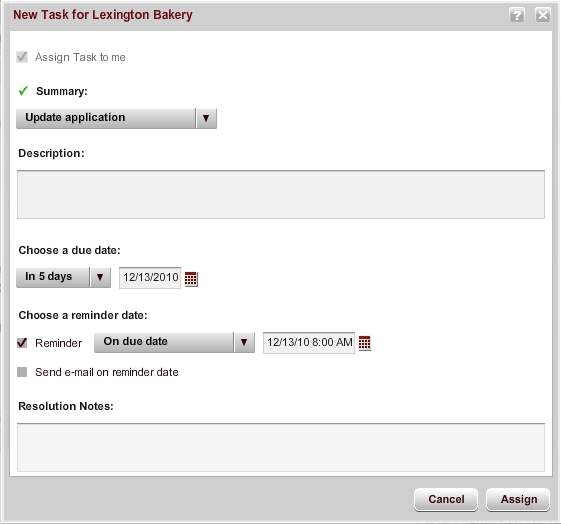
- Select the number of days from the current date (in 5 days, in 10 days, and so on) from the list.
- Click the Calendar icon
and select the date; select a time if you want the reminder to appear at a specific time.The default time is 8 A.M.
, and select a date; select a time if you want the reminder to appear at a specific time. The default time is 8 A.M.You can modify tasks that you create from the Tasks list on the submission's Overview tab or the Home tab. You can also modify the reminder date for tasks that a Carrier user assigns to you, and mark your tasks as Resolved. (You cannot modify any other task information for tasks assigned to you by Carrier users.)
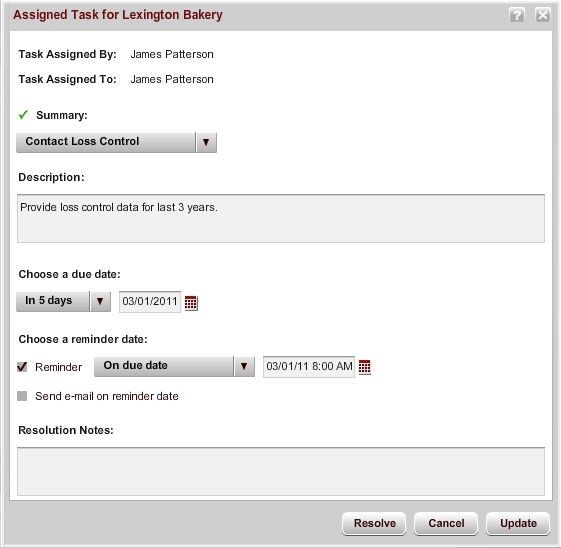
Note: You can modify the task recipient by selecting another user under Select the recipient of the Task. If the task summary is not valid for the user you selected, the Summary list displays "Select Summary," and you need to select a valid summary from the list.
Note: If you modify the due date for a task after you have selected a reminder date, Geaux recalculates the reminder date based on the value shown in the relative date list. For example, if the relative date list shows 1 day before due date, and you change the due date, Geaux updates the reminder date to 1 day before the new due date. If the relative date does not result in a valid reminder date, Geaux sets the date to the nearest valid reminder date.
You can resolve tasks from the Assigned Tasks window or the task reminder pop-up window.
A reminder for the task appears in a pop-up window on the recipient's Geaux browser window at the date and time specified for the reminder's due date. From this window, you can view the submission, dismiss the reminder, snooze the reminder, or resolve the task.
From the reminder pop-up window, click View Submission. The reminder pop-up window closes, and the related submission opens to the Overview tab.
You can dismiss a reminder if you do not want the reminder pop-up window to display again.
From the reminder pop-up window, click Dismiss. The reminder pop-up window closes, and the reminder will not appear again.
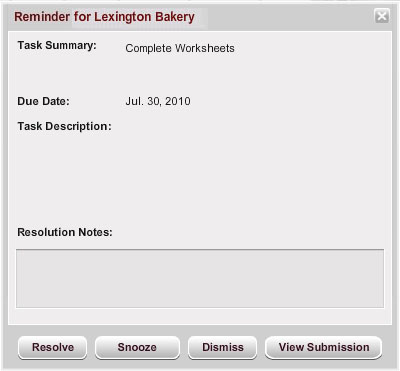
When the reminder due date occurs, the reminder displays in a pop-up window when for the task recipient upon login to Geaux. If the reminder is not yet complete, the recipient can snooze it so that the pop-up window will display again later.
The reminder updates with the new date and time, and the task recipient will see a pop-up reminder at the new time.
AMERISAFE Phone: 800-897-9719 Fax: 800-450-1091 aiic-mktg@amerisafe.com